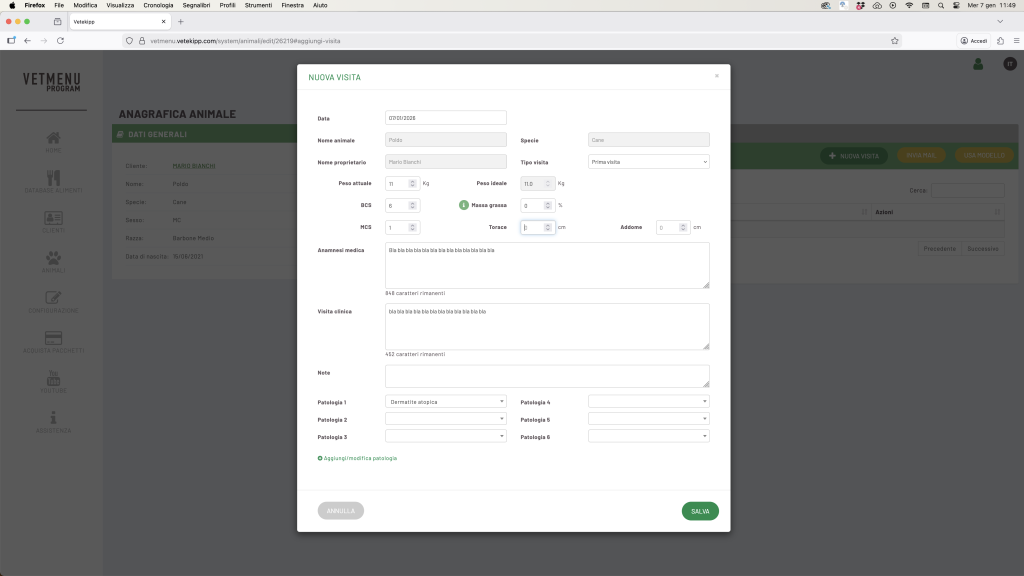


Once you have registered the client and the animal, the next step is to create a new appointment.
This section collects the clinical and nutritional information required to calculate the animal’s energy requirements and subsequently formulate a diet.

5.1 Type of visit
In the “Type of visit” field, choose from:
- First visit
- Check
📘 In our example, this is Poldo’s first visit.
5.2 Weight and Body Condition Score
Enter your current weight (e.g. 10 kg).
The programme will automatically set this as your ideal weight.
💡It is essential to enter the patient’s ideal weight, as it is this figure—not their current weight—that the programme uses to calculate their energy requirements.
💡 The ideal weight is not adjusted based on the selected BCS, but only via the body fat percentage field. If the dog is underweight, you will need to enter the “-” (minus) symbol before the body fat percentage.
📘 Example: if a dog weighs 10 kg and the fat mass is indicated as +10%, the ideal weight will be 9 kg; if a dog weighs 10 kg and the fat mass is indicated as -10%, the ideal weight will be 11 kg.
5.3 MCS, notes and conditions
Enter the Muscle Condition Score (1–4), any notes regarding the patient’s medical history or clinical examination, and, if necessary, up to six conditions selected from the drop-down menu.
You can also add new ones via “Add/Edit condition”.
The new entries will only be visible in your personal database.
💡 Any items selected from the ‘Medical Conditions’ list do not affect the programme’s calculation of energy and nutritional requirements in any way.
5.4 Saving your visit
Once you have filled in the fields, click Save.
You can always go back and edit an appointment by clicking the blue ‘Edit’ button.
✅ Hai completato la prima visita dell’animale.